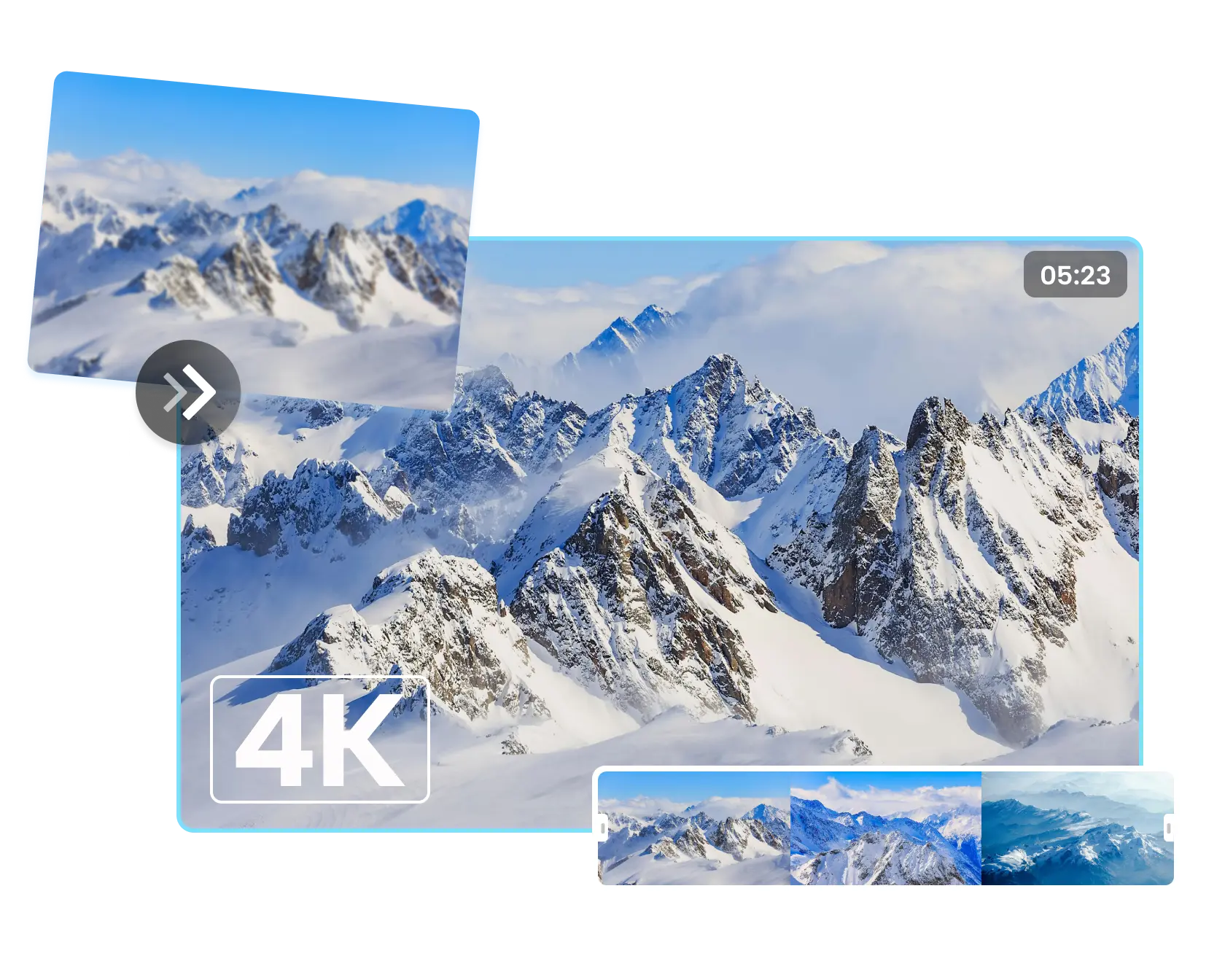
Upscale video to 4K without losing quality
Choose 1080p, 2K, or 4K for the screen you need. Video2X rebuilds edges and texture frame by frame, so the result looks sharper—not simply larger.
 Video2X
Upscale video to 4K in your browser. No install, no GPU, and no watermark on the file you download.
Upload one clip, choose the detail level, and see the exact cost before rendering.
Estimated cost
— credits
2 credits/s. Shown before generation
A browser-based upscaler that rebuilds detail instead of stretching the pixels you already have.
Video2X is an online AI video upscaler that processes each frame on server GPUs and returns a higher-resolution MP4. Open a browser on Mac, Windows, Linux, or ChromeOS—there is no app, driver, or model to install.
Traditional resizing averages the pixels already in the file. Video2X predicts plausible missing detail instead, so a 720p edge can look sharper at 1080p or 4K rather than simply becoming a larger soft edge.
The source still sets the ceiling. Clean phone footage, screen capture, animation, and well-transferred archives improve most. Out-of-focus or severely damaged footage can become cleaner, but no upscaler can recover detail the camera never recorded.
A sharper file is useful only when the rest of your workflow stays intact.
Video2X keeps the practical decisions visible: target resolution, source-specific enhancement, audio, frame rate, render estimate, and credit cost.
Choose 1080p, 2K, or 4K for the screen you need. Video2X rebuilds edges and texture frame by frame, so the result looks sharper—not simply larger.

See the exact credit cost and render estimate before processing starts. Test the hardest part of a clip first, then commit the full file when the result holds up.

Video2X preserves the original audio and frame rate by default. Turn on frame interpolation only when you want smoother motion.

Run Video2X in a modern browser on Mac, Windows, Linux, or ChromeOS. Server GPUs process the clip, so there are no drivers, models, or local tools to install.

Every Video2X export is watermark-free, including free-credit tests. Buy credits once and use them when needed—nothing renews each month.

Queue MP4, MOV, MKV, AVI, and WebM files for unattended processing. Download the finished clips as MP4 from one shared credit balance.
Choose the problem in the footage, not a vague “enhance” setting.
Phone video, anime, VHS, and compressed downloads fail in different ways. Video2X gives each source a more suitable starting point, with Standard and Pro quality when the material needs a heavier pass.
Old memories, creator backlogs, animation, and everyday footage all need a different kind of care.
Modern video work is rarely one polished camera original. It is a mix of phone clips, archives, downloads, screen recordings, and generated footage that needs to hold up on sharper displays.
Bring 480p and 720p phone video, VHS transfers, and camcorder footage closer to the screens families use now. Restoration handles noise and age before Video2X raises the resolution.
Prepare a 720p back catalogue for 1080p or 4K delivery without rebuilding an editing workstation. A sharper master also gives social platforms more detail before their own compression starts.
Hard lines, flat colour, interface text, and generated frames respond differently from live action. Select the matching Video2X mode instead of forcing every source through the same model.
Use the same online AI video upscaler on macOS, Windows, Linux, or ChromeOS. Processing runs in the cloud, so the machine in front of you does not need a discrete GPU.
The honest limit: footage that was out of focus at the lens is missing information. Video2X can make it cleaner and easier to watch, but it cannot recover a face or texture the camera never captured.
Four groups who need the resolution but not a $59-a-month desktop app.
You do not need a workstation or a colour-grading habit to need higher resolution. These are the people who get the most out of Video2X.
Most capable upscalers are desktop software built for Windows, and the ones that do run on macOS usually want a discrete GPU. Anyone searching Video2X Mac ends up reading build instructions that do not apply to their machine. Video2X runs in a browser tab, so the operating system stops mattering — an AI video upscaler for Mac that needs no install, no GPU, and no terminal.
You have a back catalogue shot at 720p and platforms that now reward 4K. Re-shooting is not an option; re-rendering is. Run them through Video2X before upload so platform compression has less to destroy.
Digitised VHS lands at 480i and looks worse every year on a larger television. Video2X Restoration mode handles it, and the 30 signup credits are enough to test several tapes before committing anything.
You need client and stock footage to match the resolution of the rest of an edit, before a deadline, without buying a per-seat licence for software one person opens twice a month.
From upload to a sharper download, with the cost visible before the full render.
The workflow stays short so you can spend time judging the footage rather than learning an interface. Start with the hardest few seconds, then scale up only when the result holds.
Add an MP4, MOV, MKV, AVI, or WebM. Use a short, difficult section first—the soft face, noisy shadow, or compressed movement that will decide whether the full job is worth running.
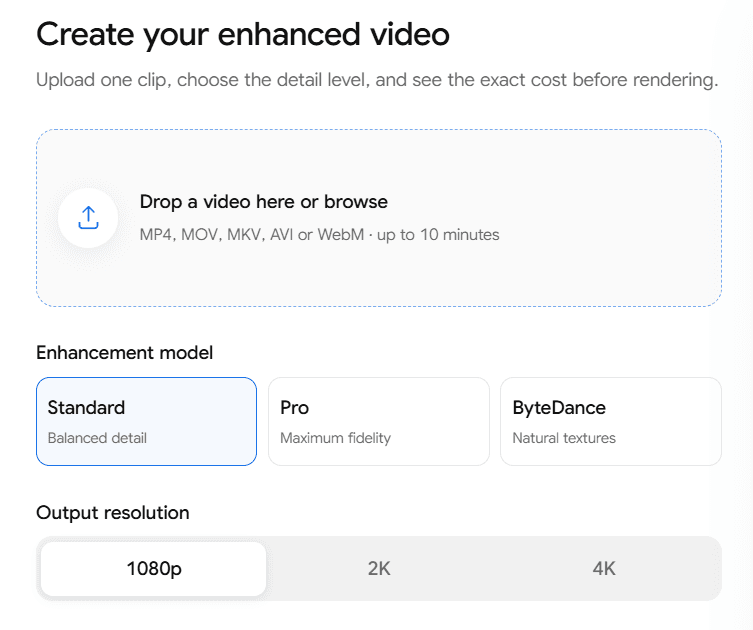
Select 1080p, 2K, or 4K, then match the mode to the source: 4K Upscale for clean footage, Animation for anime, Restoration for tape, or Deblock for re-shared clips. Standard suits most files; Pro is for material that needs a heavier pass.
Review the preview and credit estimate before committing the full clip. When the result holds up at full screen, render and download the MP4 with its audio and frame rate preserved.
Pay for the output you render, not for another month on the calendar.
Register and Video2X gives you 30 credits to test with. After that you buy a pack. Nothing renews, and nothing expires on a monthly clock.
Standard is the practical default for clean footage. Video2X Pro uses a heavier pass and costs two to three times more, so test Standard before paying for the full clip.
Sign up with 30 free credits—about 15 seconds at 1080p Standard. Paid packs start at $9.90, are bought once, and export without a watermark.
Choose around your workflow: quick browser access or deeper local control.
The useful comparison is not a blanket quality claim. It is what each tool asks from your hardware, time, privacy requirements, and editing routine before the first render begins.
Choose Video2X when you want to open a tab, upload, see the cost, and receive a finished file without qualifying your computer first. It fits occasional jobs, locked-down work machines, Macs without a discrete GPU, and people who do not want another monthly desktop tool.
Choose Topaz or another local desktop upscaler when footage cannot leave your machine, you render in high volume, or you need the deepest model controls and editor integrations. Video2X optimises for access and a shorter path to a usable result, not for winning every professional workflow.
Not the most powerful one. The one with the fewest reasons not to try it.
"Best" depends on what you are optimising for. For occasional jobs on ordinary hardware, five things decide it — and Video2X is built around them.
Video2X runs in a browser tab: no GPU, no drivers, no environment to configure, no platform restriction. The most capable upscalers are desktop software, which rules them out the moment you are on a Mac, a work laptop, or a Chromebook.
Video2X exports with no watermark on every pack, free credits included. The 30 credits you get for registering are about fifteen seconds of 1080p — small, and said plainly rather than dressed up. Most free tiers in this category either stamp the output or cap it at 720p, which makes them demos you cannot judge anything by. Fifteen watermark-free seconds of your own footage tells you more than a minute of someone else's.
Credit cost and estimated render time appear before the job starts. This sounds minor until a long transfer silently eats a month of credits somewhere else.
Anime, tape, and compressed downloads each fail differently. Video2X handles them with seven separate modes rather than averaging the difference away.
Video2X tells you what it cannot fix — out-of-focus footage, six-pixel faces — instead of letting you discover it after paying.
Where Video2X is not the best choice. High-volume work, badly degraded archival restoration, and any footage that legally cannot leave your machine. For those, buy Topaz or run something locally. Saying so is the point of this section: a tool that wins every comparison is a tool nobody should believe.
Clear answers about cost, formats, source limits, and old footage.
If an answer depends on the source, the thing it depends on is stated. No vague promise can replace testing a few seconds of your own footage.
Video2X is a browser-based AI video upscaler that raises the resolution of a video by generating new pixel detail frame by frame, rather than stretching the pixels already there. You upload a clip, choose an output resolution of 1080p, 2K, or 4K, pick an enhancement mode and a quality level, and download a finished MP4. It runs on server GPUs, so nothing installs on your machine and no graphics card is required — a six-year-old laptop produces the same output as a workstation. Video2X charges credits by the second of output rather than by subscription, registering gives you 30 free credits to test with, and nothing it exports carries a watermark.
A model trained on large sets of paired low- and high-resolution images predicts what detail should exist between the pixels you have. Video2X analyses each frame for resolution, noise, and compression damage, then reconstructs edges, textures, and surfaces at the target resolution. Traditional resizing averages neighbouring pixels, which is why a stretched clip looks soft. Reconstruction adds information that was not in the file, which is why an upscaled clip looks sharp. The enhancement mode you pick decides which model runs and in what order — denoising and deblocking happen before the resolution jump, never after.
There are free credits rather than a free plan, and it is worth being exact about the size. Create an account and Video2X gives you 30 credits, once. Credits are charged by the second of output — 2 per second at 1080p on Standard quality — so 30 credits is about 15 seconds of 1080p, or 6 seconds at 4K. That is a test clip, not a project, and anyone telling you a free tier covers real work is rounding in their own favour. What those 15 seconds do buy is the only thing that matters before paying: a watermark-free, full-resolution file made from your footage, so you can judge the result instead of a demo reel. After that, credits are bought in one-time packs starting at $9.90 for 990 credits. There is no subscription and nothing renews.
It can, but be realistic about the result. A 480p source going to 4K is an eight-fold increase in pixel count, and the model is inventing most of them. The output looks clearly better than a stretched 480p file on a 4K screen, and it will not look like footage shot in 4K. Clean sources — good light, low compression, not interlaced — improve substantially. A fourth-generation tape copy comes back softer and cleaner rather than sharp. Going 480p to 1080p first often looks more natural than jumping straight to 4K.
Three common causes, in order of likelihood. First, the source had too little detail to begin with — heavily compressed or severely degraded footage gives the model almost nothing to reconstruct from. Second, the wrong mode was selected: running anime through the general model, or skipping Deblock on a re-shared clip, both produce soft output. Third, platform compression after upload — YouTube and Instagram re-encode everything, so export at 4K before uploading so their compression has more to work with. If the original was out of focus at the lens, no setting fixes it.
Yes, and old footage is where the improvement is most visible. Restoration mode deinterlaces tape sources, removes grain and dropouts, repairs flicker, and recovers faded colour before the resolution jump. Home movies, VHS and camcorder transfers, and early digital camcorder clips were captured well below what modern screens display natively, so reconstruction has real headroom. The result looks naturally enhanced rather than stretched. Expect a strong improvement on clean transfers and a moderate one on tapes that were already several copies removed from the original.
Yes. Video2X runs entirely in the browser, so macOS, Windows, Linux, and ChromeOS behave identically and no GPU is required. Anyone searching Video2X Mac usually ends up reading desktop build instructions that do not apply to their machine — this is the version that needs no terminal, no dependencies, and no discrete graphics card. Safari, Chrome, Firefox, and Edge all work. Because processing runs on server GPUs, an M-series MacBook and an older Intel one produce identical output in the same time.
Render time tracks three things: clip length, target resolution, and frame rate. Doubling the clip length doubles the time. Going from 30 fps to 60 fps roughly doubles it again, because the model runs on every frame. Video2X shows the estimate before the job starts, so you are never guessing. Long files are best split into chapters — a two-hour transfer is better handled in segments than one pass.
Yes, in a dedicated Animation mode. General upscaling models are trained mostly on photographic content and tend to soften the hard lines and flat colour fills that animation depends on, which is why anime run through a generic AI video upscaler often comes back looking waxy or plasticky. Animation mode preserves line weight, keeps flat fills flat, and avoids banding across gradients. Select it manually for anime, cartoon, and motion-graphics sources — the automatic default reads resolution and frame rate, not art style, so it will not detect animation on its own.
Video2X accepts MP4, MOV, MKV, AVI, and WebM, and exports MP4. Your audio track is copied through without re-encoding, so you lose neither a generation of quality nor sync with the picture. Frame rate is preserved by default — a 24 fps source returns at 24 fps rather than being silently converted to 30. Frame interpolation to 60 or 120 fps exists as a separate mode and is never applied unless you ask, because it changes how motion reads and many people do not want that on film-sourced footage.
Three worth knowing before you start. It invents detail. The model reconstructs a plausible surface, not the original one, so upscaled footage is not evidence and should not be treated as a faithful record. It costs time and money per minute. Unlike a resize, every minute of output consumes real GPU time, which is why credits exist. It cannot exceed the source. Out-of-focus footage, six-pixel faces, and heavily damaged frames stay unrecoverable regardless of resolution setting. Over-upscaling a soft source produces an artificial, waxy look that is worse than leaving it alone.
30 free credits when you sign up. No card, no watermark, no subscription.
Upload the hardest ten seconds of your clip and run it at 1080p. Thirty credits covers about fifteen seconds on Standard—enough to judge Video2X on your own footage before you buy a pack or upscale the full video to 4K.
Registering takes a moment and no card is required to claim your 30 credits. There is nothing to cancel later — credit packs are one-time purchases, not a subscription.